Title here
Summary here
 General Engage FAQs
To like a comment on Facebook, select the checkbox to the left of the message. In the upper right-hand corner you’ll see a “thumbs up” icon. Click this icon to issue a “like” on the message. Once you finish your conversation workflow and dismiss the conversation from your assignment queue, the “like” will be issued to the native comment.
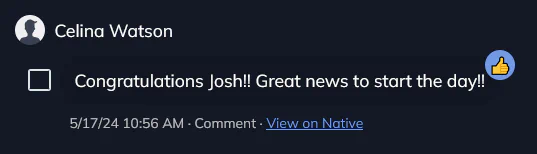
This icon is present when your brand profile has already issued a “like” on this message (whether in Engage or otherwise).
In Engage, all protocols need to be approved before they can be used for conversation categorization. This is a safety measure designed to help manage your customer service or brand interactions effectively, ensuring that only up-to-date protocols are in use when handling your inbox.
A protocol will show as approved with a checkmark next to it. If a protocol is newly created or hasn’t been approved yet, it will not be available for use until it’s reviewed and approved by a user on your team.
Once the protocol is approved, the checkmark will appear, and you can begin using it for conversation categorization.