Title here
Summary here
 Team Alerts Guide
Team Alerts are internal notifications you can create to help your team stay informed about timely updates, issues, or important context when responding to messages in the Engage Inbox. These alerts ensure your agents always have the latest information at their fingertips.
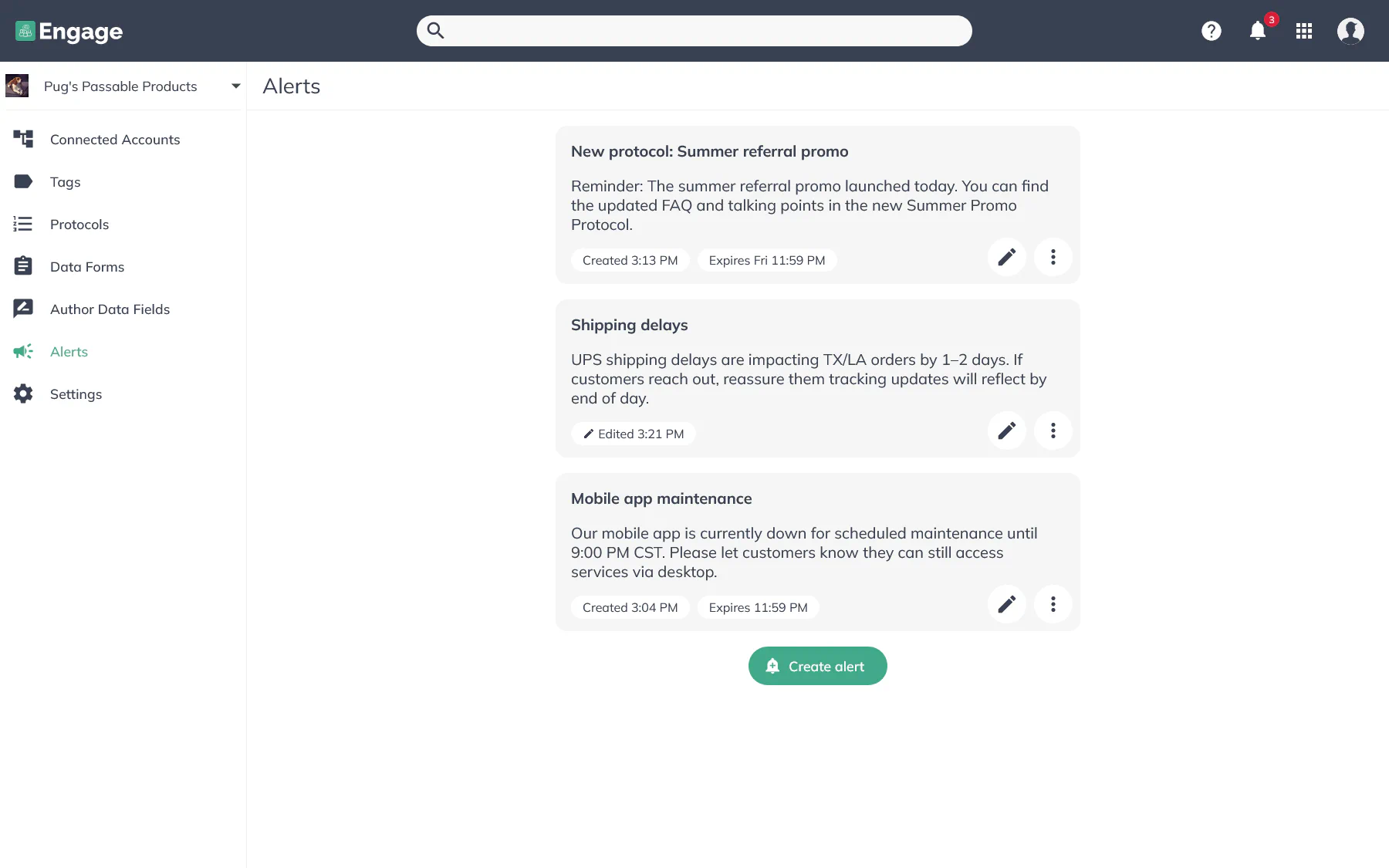
Team Alerts are visible notifications displayed via the notification bell icon at the top of your Engage screen. These alerts:
Example uses include letting your team know:
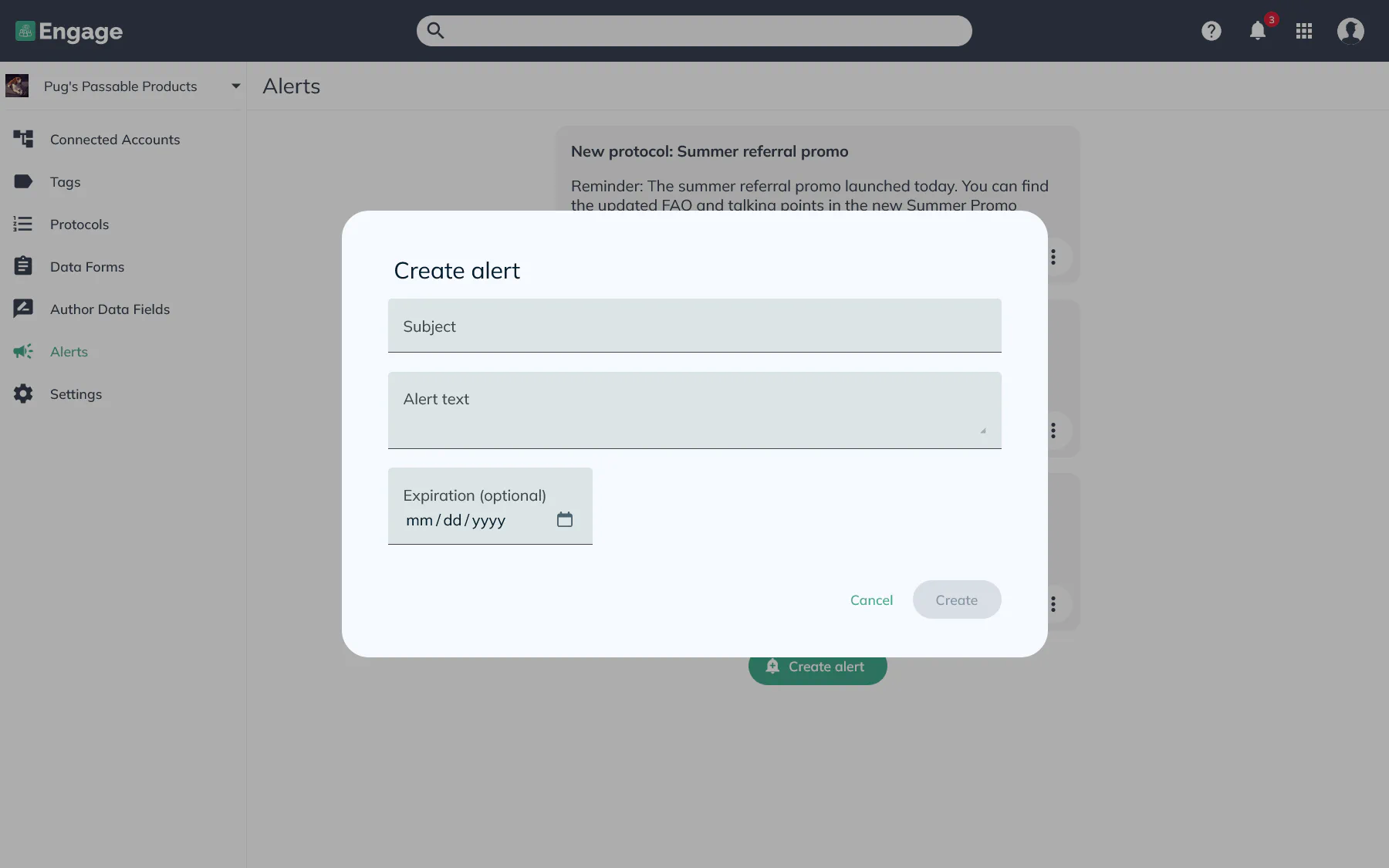
To manage alerts:
To edit an existing alert:
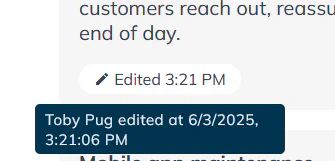
NOTE: You can hover over any alert (in both the Admin view and the notification dropdown) to see who and when created or last edited the alert.
All active alerts appear under the notification bell icon at the top of the Engage Inbox. Users will see the alert subject, brand name, and description.

Yes. If you’ve set an expiry date, the alert will automatically disappear from the notification bell once it expires. You can also manually edit or remove alerts at any time from the Engage Admin.
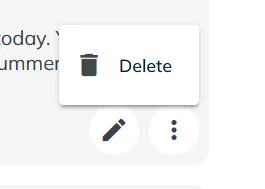
Yes. To delete an alert, go to the Alerts tab in Engage Admin, click the three-dot icon on the alert you want to remove, and select Delete. Deleted alerts are removed from all users’ notification dropdowns.
Yes. If you have access to more than one brand in Engage, you can view and set alerts for each brand individually. In the notification dropdown, each alert will clearly indicate which brand it belongs to.