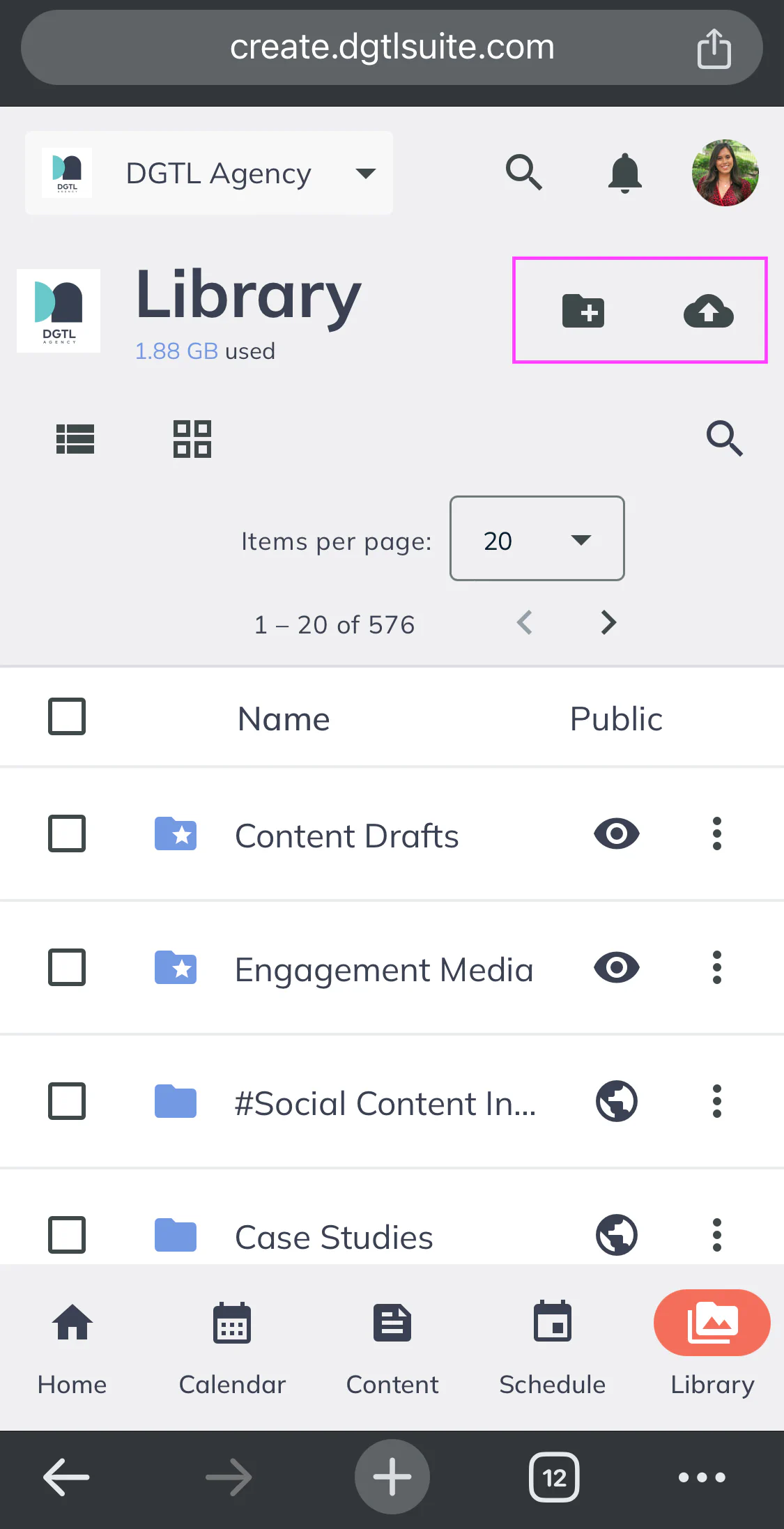
Navigate to your Library from the Main Navigation Menu on the left side of your screen
There are two buttons at the top of your Library:
New Folder - Allows you to create a new folder in your Library
Upload File - Allows you to upload files to current folder of your Library
Once you are in the correct folder you’d like to upload to, click ‘Upload File’ to upload one or more files to the folder
A “upload status” icon will appear at the top of your screen to show you how far along your uploads are. You can also see an expanded view of these by clicking on the arrow icon.
 How To: Uploading Content to Library