Quick editing allows you to make fast, small changes to a Draft without having to open the full Draft Workspace. This feature is ideal for making quick adjustments such as:
Changing the suggested publish date
Adjusting the suggested publish time
Updating the Draft’s Name/Topic
Changing the Draft’s status
This helps you streamline your workflow and save time when managing your drafts.
To use the Quick Edit feature, follow these steps:
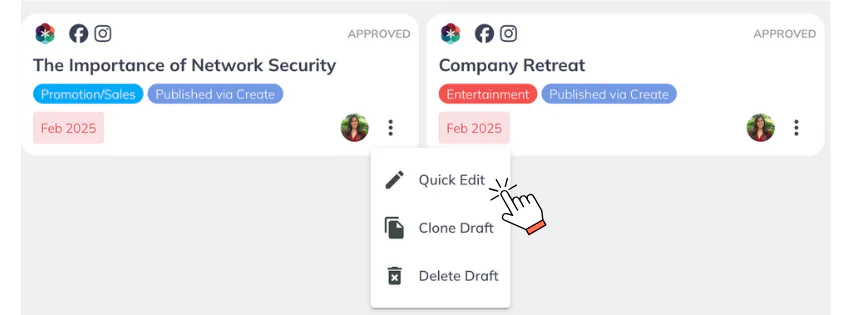
Locate the Draft Card: You can find your draft cards on the Dashboard, Calendar View, and Scheduler View.
Open the Quick Edit Menu: Click the 3-dot icon on the Draft Card.
Select “Quick Edit”: From the dropdown menu, choose the Quick Edit option.
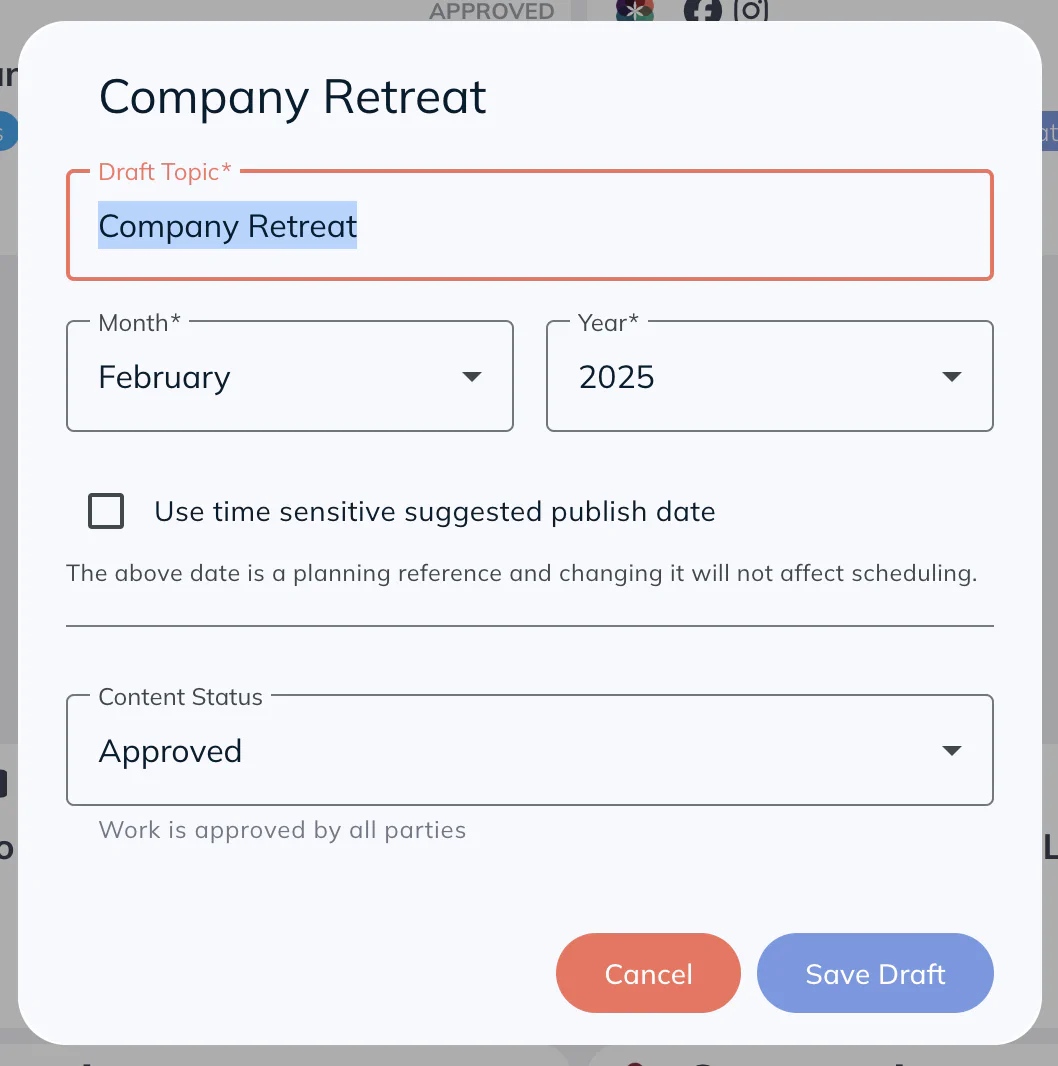
Make Your Changes: A popup will appear where you can update key information like the draft name, status, suggested publish date, and suggested publish time.
Save Your Changes: After editing, click Save Draft to apply your updates.
Do My Drafts Have to Be in a Certain Status to Quick Edit?#
No, Quick Editing is available for all Drafts regardless of their status. However, there are some important points to keep in mind:
If you change the suggested publish date or time for a Draft that has already been scheduled or published, this will only affect the Draft’s reference in the Calendar and List views. The actual scheduling time or date for the posts within the Draft will not be updated.
Will My Quick Edits Be Logged in the Draft’s Update History?#
Yes, all changes made via Quick Edit will be logged in the Updates History under your draft. You can tell a draft has been edited via “Quick Edit” because the activity log in the Updates History will show you more details on what specifically was adjusted (e.g. “Post suggested Publish Date was changed to Month, Day, Year” and “Content Draft Topic name was updated”).By using the Quick Edit feature, you can efficiently manage your Drafts without disrupting your workflow, ensuring that minor adjustments are always just a few clicks away!
 All About Draft Quick Edits