Title here
Summary here
 Understanding Create: The Calendar Page
To view a full walkthrough demo of Create, click HERE.
The Calendar Page allows you to manage all your planned drafts, add new drafts, and quickly identify the status of content that is currently being worked on in a CALENDAR view.
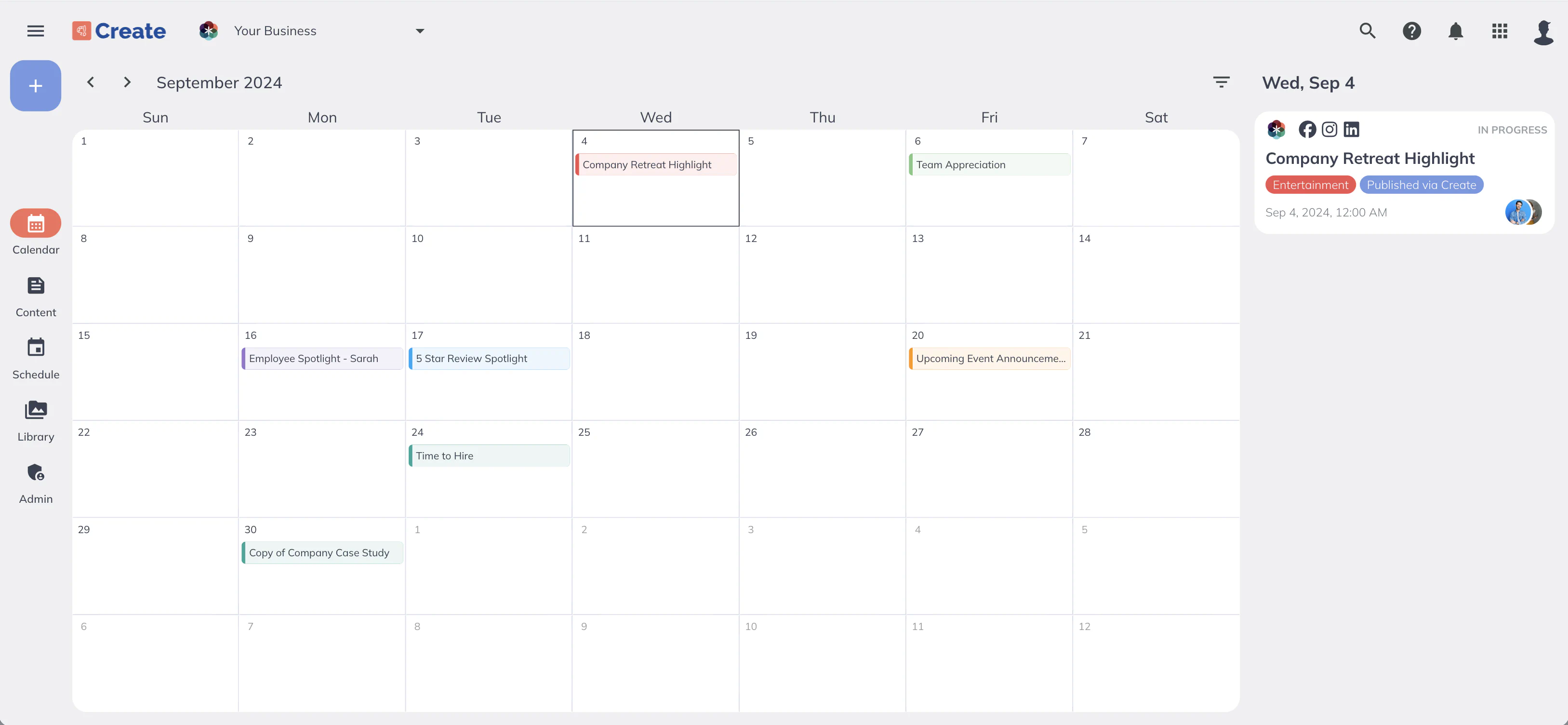
To see the drafts that have a specific date on your Calendar, click on the day in the calendar to populate all the Draft cards in the column on the right. If you want to navigate to the Individual Draft View to view more details or change the date on this draft, just click on the Draft card.
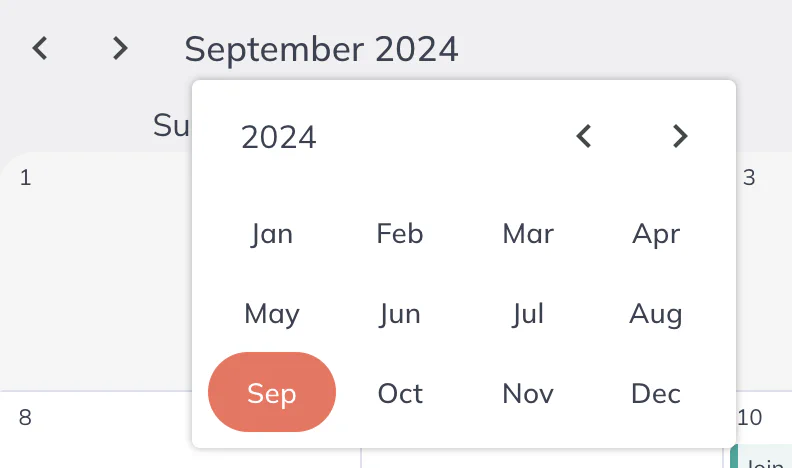
You can toggle to different months by using the arrows next to the Month / Year, or if you want to navigate directly to a specific month, you can click the Month Name and additional navigation is available.
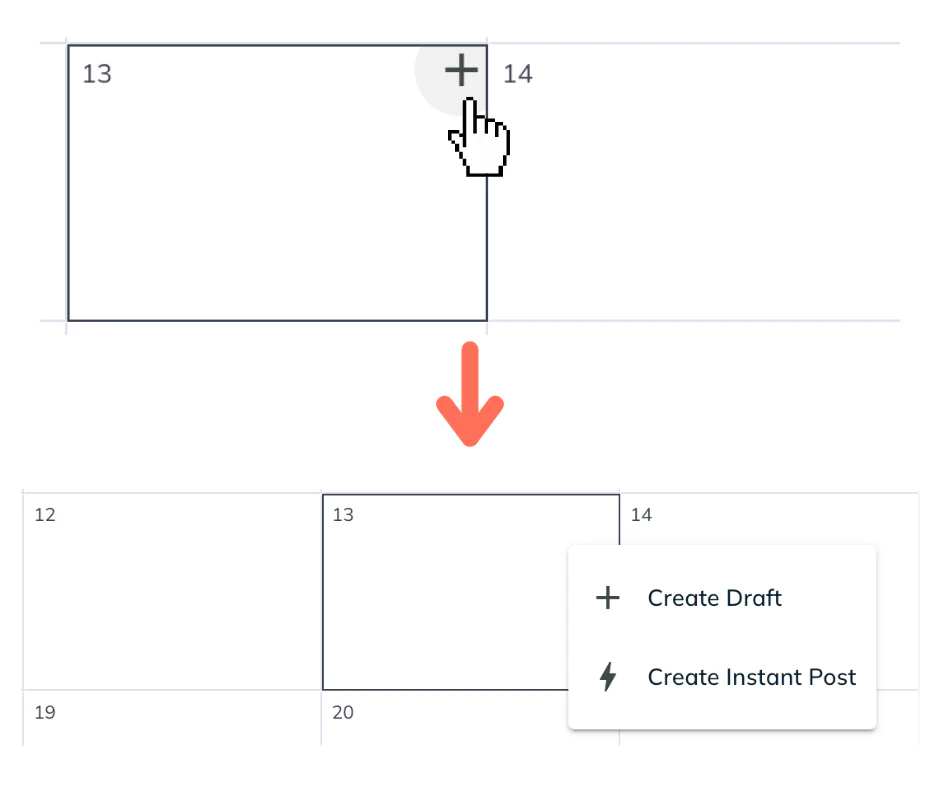
You can add Drafts directly from your Calendar by using Quick Actions. The ‘Create Draft’ and ‘Instant Post’ options are visible if you click on the PLUS ICON within a specific day on the Calendar. You can hover over any calendar square to see the PLUS ICON.
Yes! You can easily filter your Calendar Page the same way you can your Content (List) Page.To access the Filter Panel, just click the filter icon in the upper right-hand corner above your Calendar.
Any non-time sensitive (Drafts without a Date specified) Drafts will be sorted to the LAST DAY OF THE MONTH in your Calendar Page. After adding a date, the Drafts will move to the specified day on your Calendar accordingly.