Title here
Summary here
 Understanding Create: The Admin Page
The Admin page in Create is your go-to place for configuring workflow-specific settings. Whether you’re managing multiple brands or streamlining how your team creates content, this page gives you control over how drafts are created and how media is processed.
NOTE: If you’re looking to manage suite-wide settings like notifications, user permissions, or billing, you’ll want to visit our Account app instead. Learn more about account-specific settings here.
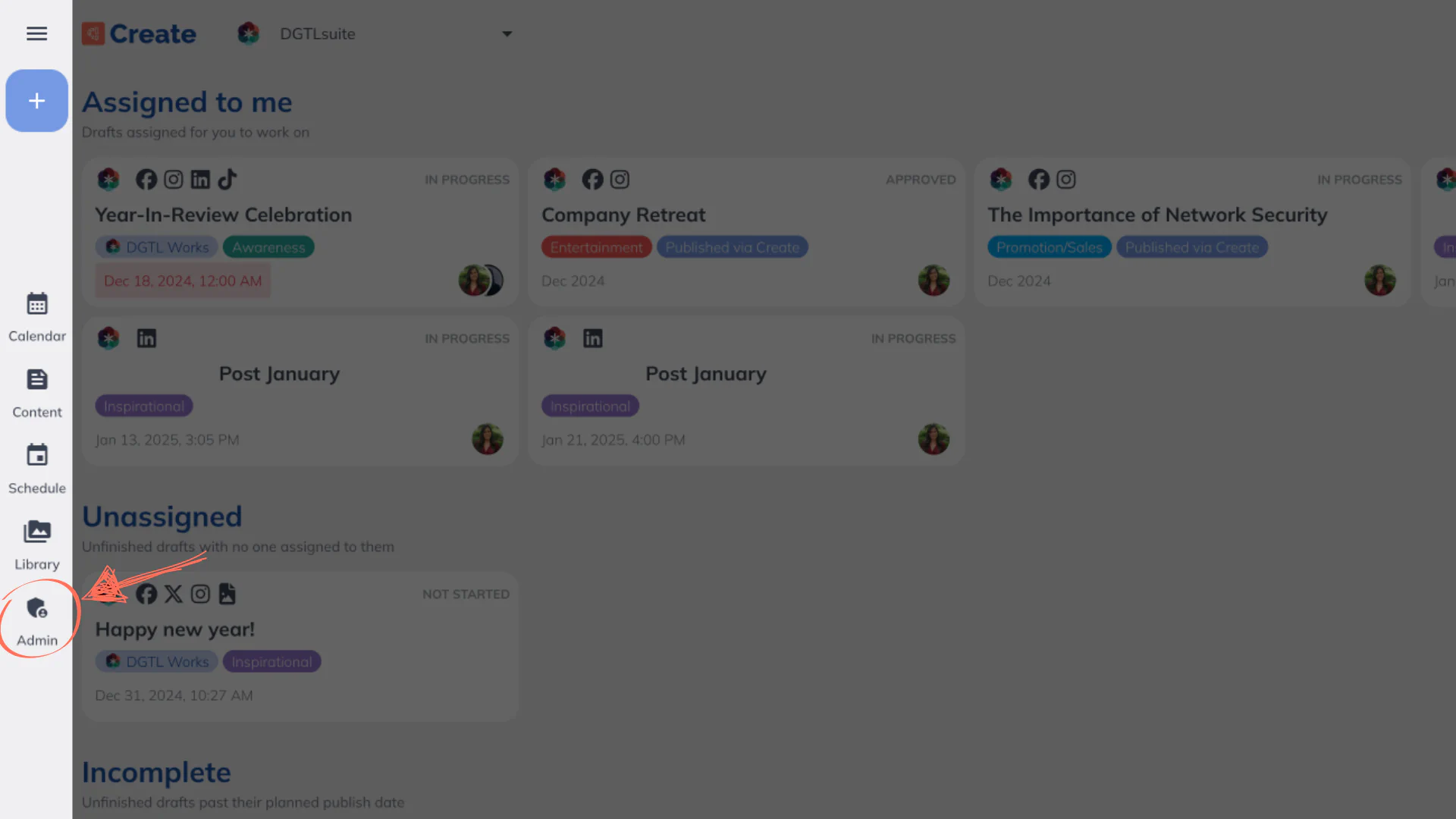
To get to the Admin page:
Once you’re there, you’ll be able to manage the following settings:
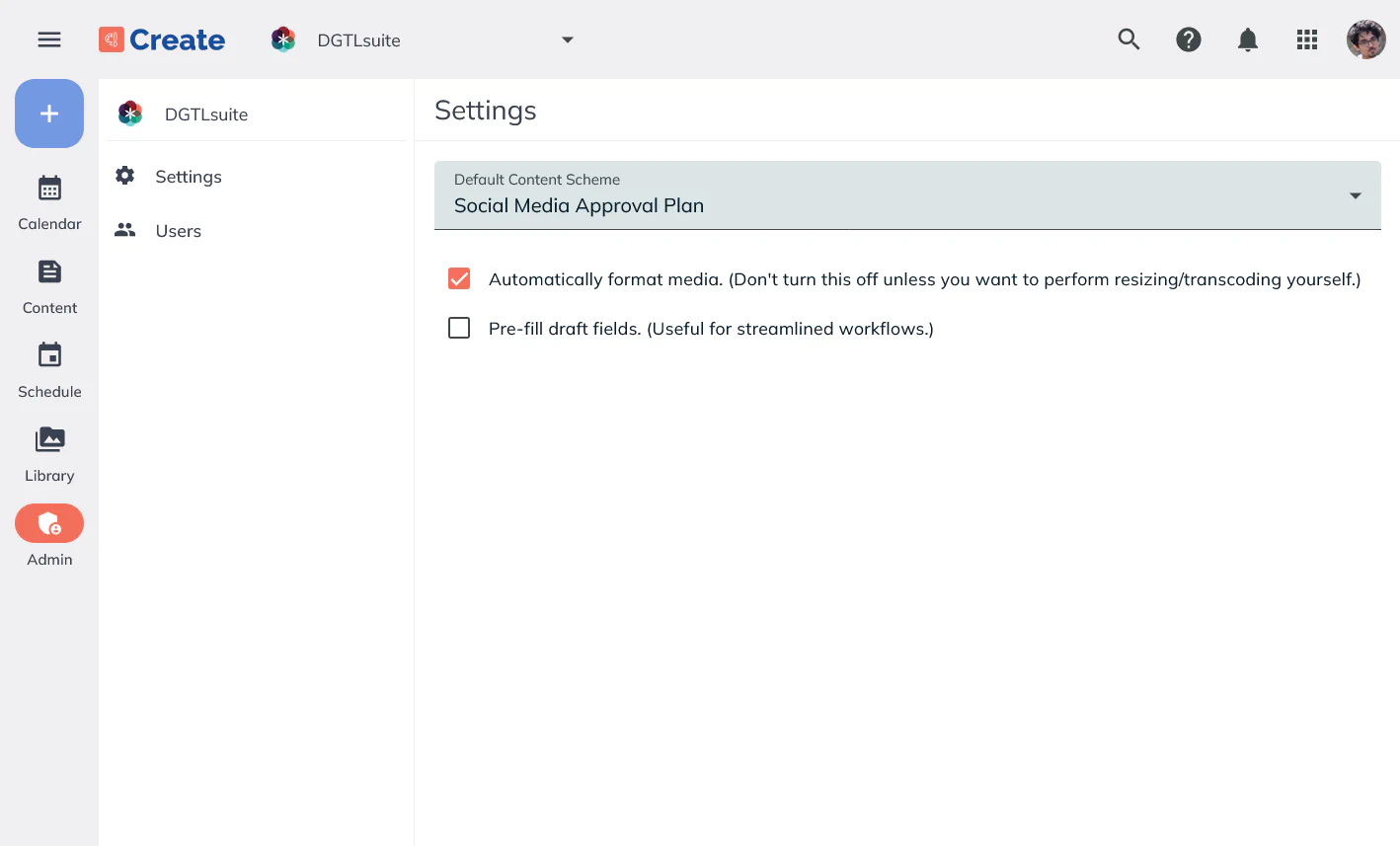
If you’re working across multiple brands, setting a default content scheme can help speed up your draft creation process.With this setting:
This is ideal for users who frequently use the same scheme and want to skip the step of manually selecting it each time. Learn how to set a default content scheme here.
When enabled, this setting ensures that uploaded images and videos are automatically formatted to match the publishing requirements of each social media platform.How it works:
If you’d rather handle media formatting manually (e.g., using Create’s built-in image editing tools), you can disable this setting. You’ll still receive warnings when media doesn’t meet platform requirements. To learn more about image editing in Create, read our guide here.
Helpful Tip
Be sure to check the “Post Type” field in your Draft’s workspace. Sometimes, the Post Type may automatically change based on your attached image format or size.
Want to move fasted when adding content to your calendar? With this setting enabled, Create will automatically pre-fill key fields in new drafts:
You can always update these fields manually when creating or editing a draft.
If your team’s workflow involves creating drafts quickly and refining details later, pre-filled fields can save time and reduce repetitive manual input. Just keep in mind that if these placeholders aren’t updated later (particularly Post Topic), your calendar might get a bit messy!
Yes! Setting a default content scheme is meant to speed things up, but you can change it manually for any draft.
It’s possible, but unlikely. Our processor is designed to maintain high visual quality while ensuring your content meets platform specs.
Yes! However, Create does not provide any additional video-editing capabilities in app yet.
Absolutely. The pre-filled data is just a starting point—you have full control to customize each draft before it’s submitted or even after it’s been saved. To learn more about the individual draft view, see our guide here.
These are managed in the Account app, not the Create Admin page.
Nope! Images uploaded to your Create Library stay the same size, file type, and quality as when you uploaded them from your device. However, if you attach one of these Library images to a draft for social publishing, then the automatic formatting setting will apply and adjust your image as needed.