Title here
Summary here
 Understanding Analyze: Users Page
The Users Page in DGTL Analyze offers an in-depth look at individual user activity within your team’s inbox (DGTL Engage). Here, you can track key metrics such as the number of conversations viewed, messages replied to, and the user’s overall response rate and median response time. Additionally, you’ll see how many conversations they dismissed and the specific actions they’ve taken, including protocols set, tiers assigned, and tags added to messages.
You can drill through to view all their managed conversations by clicking ‘VIEW ALL’ in the upper right-hand corner of the ‘Volume by Day’ widget.
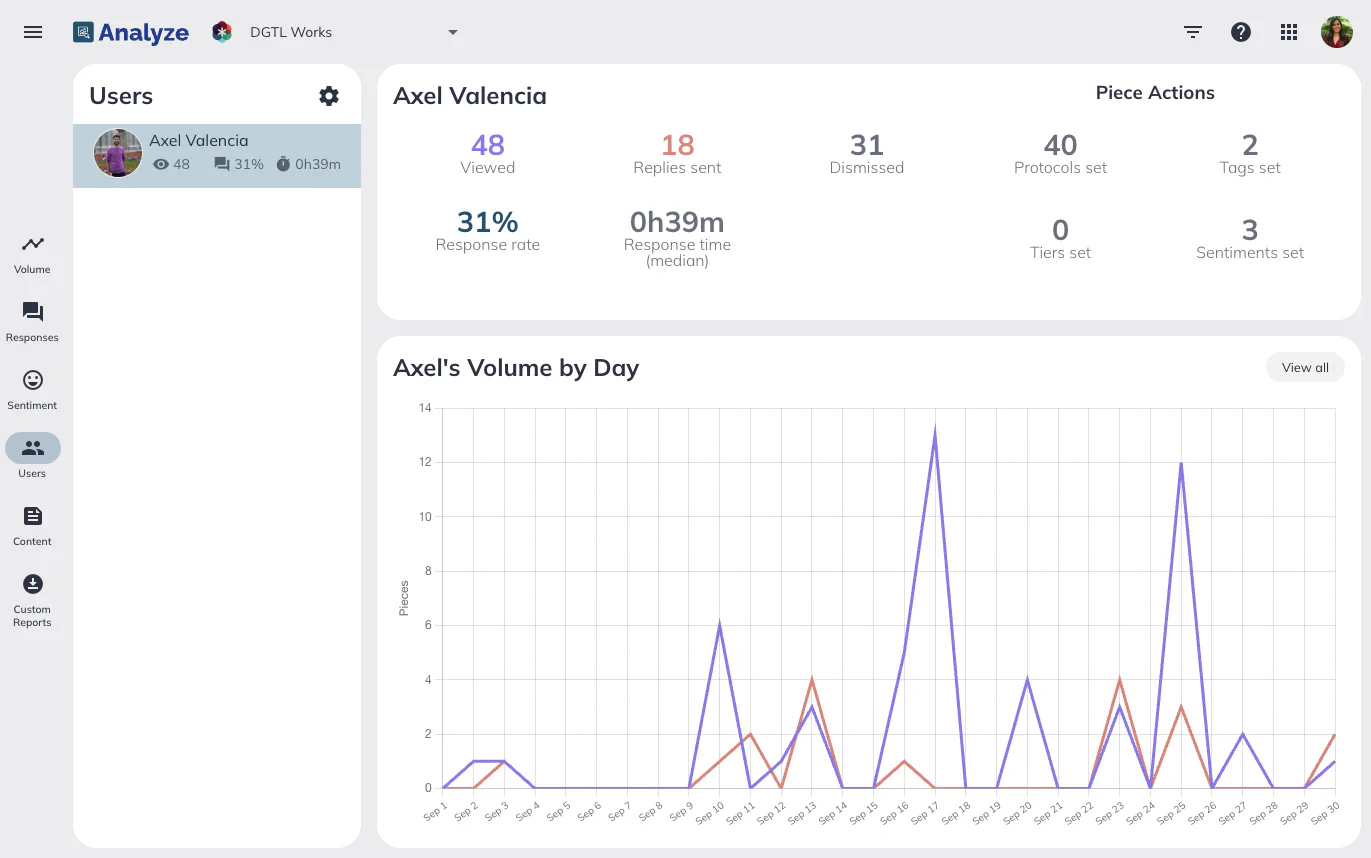
The “Views” metric represents the total number of new pieces that have been viewed by a user. A new piece refers to any comment or message that arrives since the most recent time a conversation was claimed. Importantly, the metric only counts the first time a user views a piece, multiple views of the same item by the same user are not counted.For example, if you claim a conversation and view a piece, then reassign it to a teammate who views the same piece, then reassign it back to you, the view will only count once for your user. The views metric is only updated when a conversation is assigned to you or claimed by you; simply viewing a conversation in the Overview page or in Shared Queue mode without claiming it will not contribute to the view count.This helps provide an accurate representation of your direct engagement with conversations in the system.